| Usage Tips Accessories | | Product Summary |
|---|
The Contour Touch by Contour Design features a centrally located clickable touchpad for cursor control and commonly supported finger gestures, making it a comfortable and productive ergonomic device for those who have or want to avoid shoulder issues related to using traditional mice. In addition, conventional mice issues arising from static grip force and trigger finger are eliminated as a touchpad is by design "glide and tap" as opposed to "grip and click". The high-resolution glass surface of the touchpad makes finger movement effortless, while the native Windows gesture support increases productivity by accelerating workflow. The Contour Touch comes in both wired and wireless models: the wireless version connects via Bluetooth 5.1 and includes a rechargeable (via included USB-C charging cable) and replaceable battery. The wired version has a USB-C connecting cable with a USB-A adapter included. | | Ergonomic Benefits |
|---|
Eliminates Overreaching for a Traditional Mouse, Relieving Neck, Shoulder and Elbow Pain - Conventional keyboards will result in overreaching for the mouse as it is necessary to reach over the arrow keys and numeric keypad to get to the mouse. This can lead to neck, shoulder and elbow pain and discomfort. Asymmetrical reaching with one side of the body and not the other causes muscle groups to compensate for the weight of the extended arm while reaching for a traditional mouse. Repetitive overreaching will often lead to tightness and pain in the neck, shoulder and elbow areas. The Contour Touch allows the elbows to be kept comfortably at the sides in a neutral, ergonomic position. Learn More About the Comfort Zone.
Prevents Static Grip of the Mouse - The Contour Touch is controlled with an open relaxed hand and slightly curled fingers, with no possibility of clutching or holding the device to achieve cursor control. Fingertips simultaneously glide and slide on the glass-smooth touchpad to navigate the cursor over the entire screen, with very little friction or resistance. By eliminating the muscle activity required to grip a mouse, the associated compression through the carpal tunnel is also avoided. Learn More About Carpal Tunnel Syndrome.
Ambidextrous Cursor Control - By centrally locating the mouse buttons inline beneath the center of the letter keys, mouse control is equidistant from either hand. Ambidextrous use is encouraged and easily accomplished.
Reduction of Repetitive Actions - Any finger can be used to click on the touchpad, spreading the load across both hands, unlike most mice where only the index finger is able to generate left clicks, which can lead to the development of trigger finger. Learn More About Trigger Finger.
Reduces Unnecessary and Awkward Movements - The "One Touch" buttons for Copy, Paste, Back, and Forward reduce unnecessary cursor movement, clicking, and awkward keyboard stretches.
| | Features |
|---|
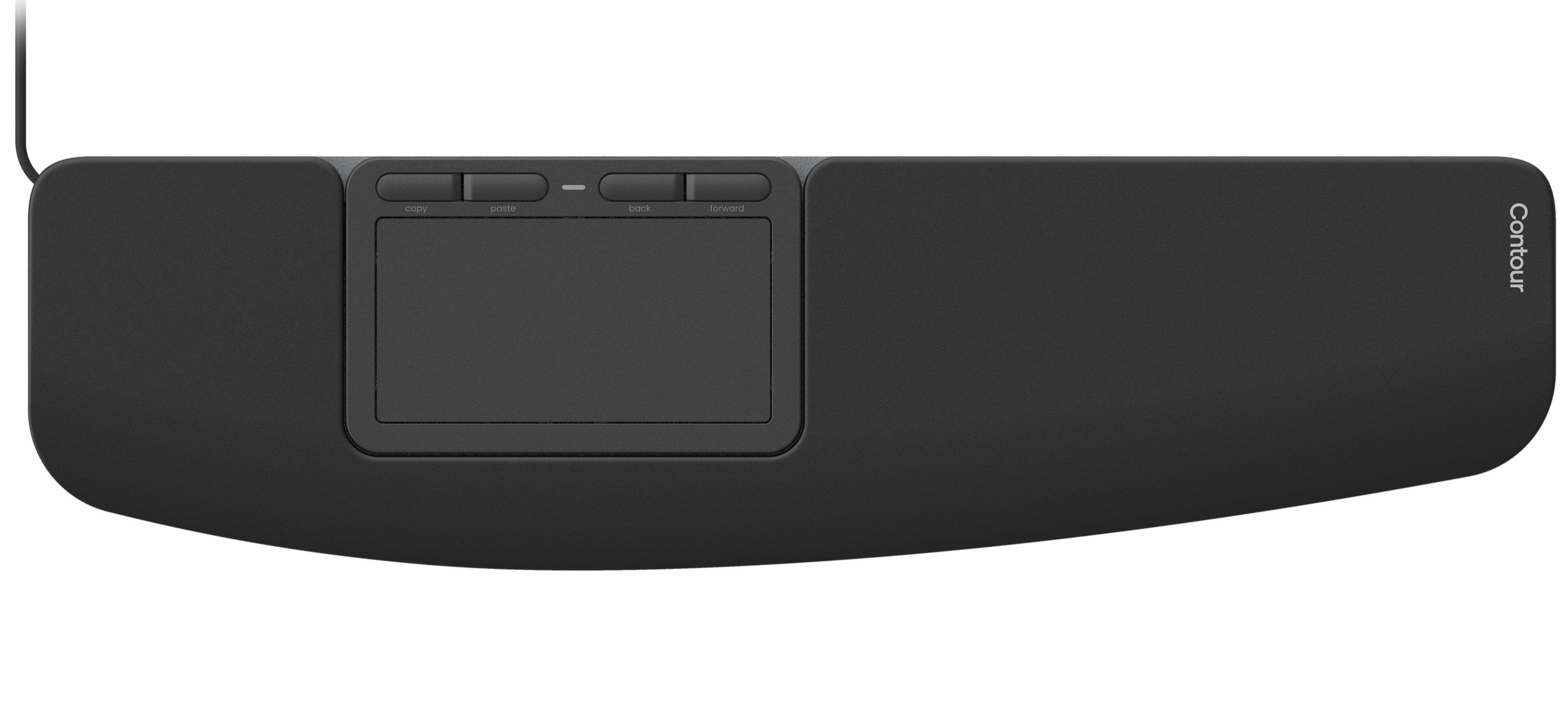
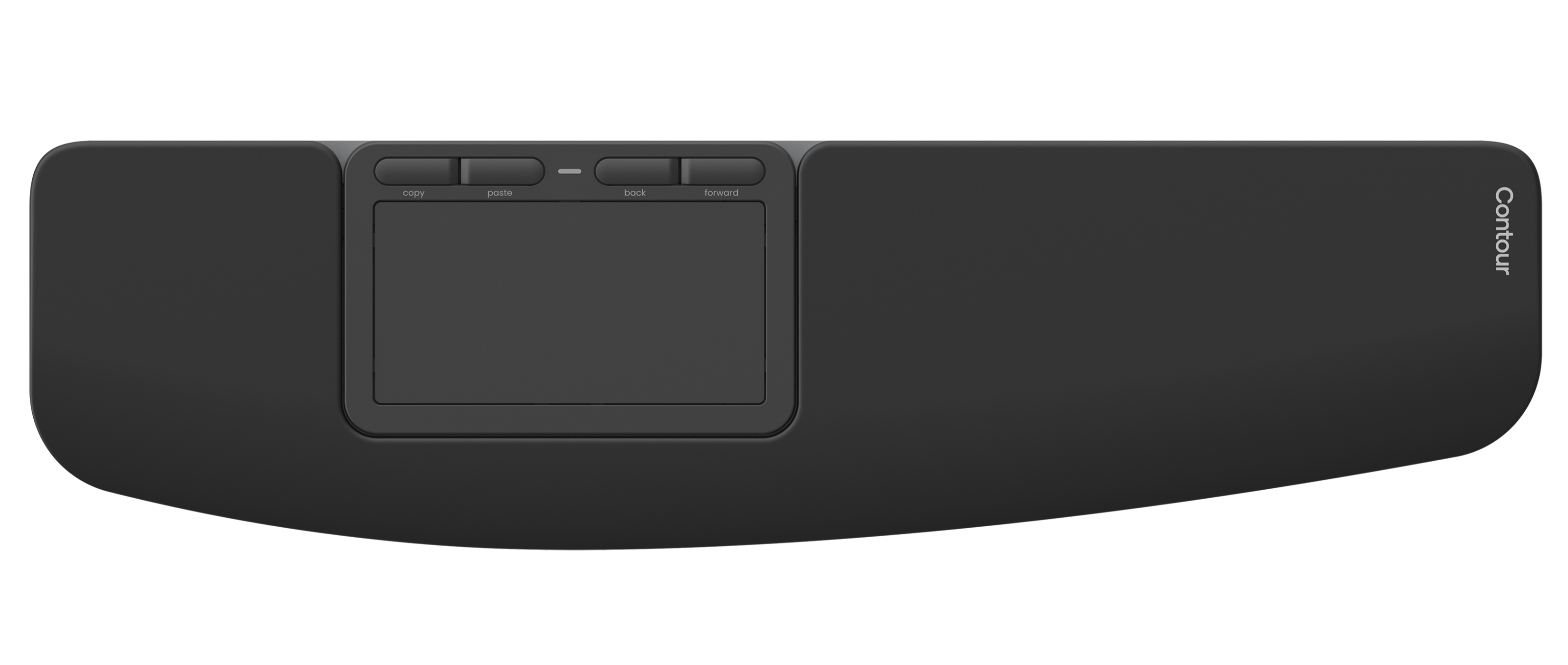
- Centrally Located Touchpad: The high-resolution glass-surfaced touchpad on the Contour Touch is ideally located close to the mid-line. This central location is easily accessible to the user and helps prevent overreaching to the left or right, which contributes to shoulder pain and discomfort over time. A touchpad, by its nature, is highly suitable for this, since it is a static (non-moving) device requiring no grip.
- Full-size Wrist Rest: The integrated full-size palm support on the Contour Touch is firm but soft, providing an optimal surface for resting your palms or wrists while typing yet easily wiped clean of any debris build-up over time.
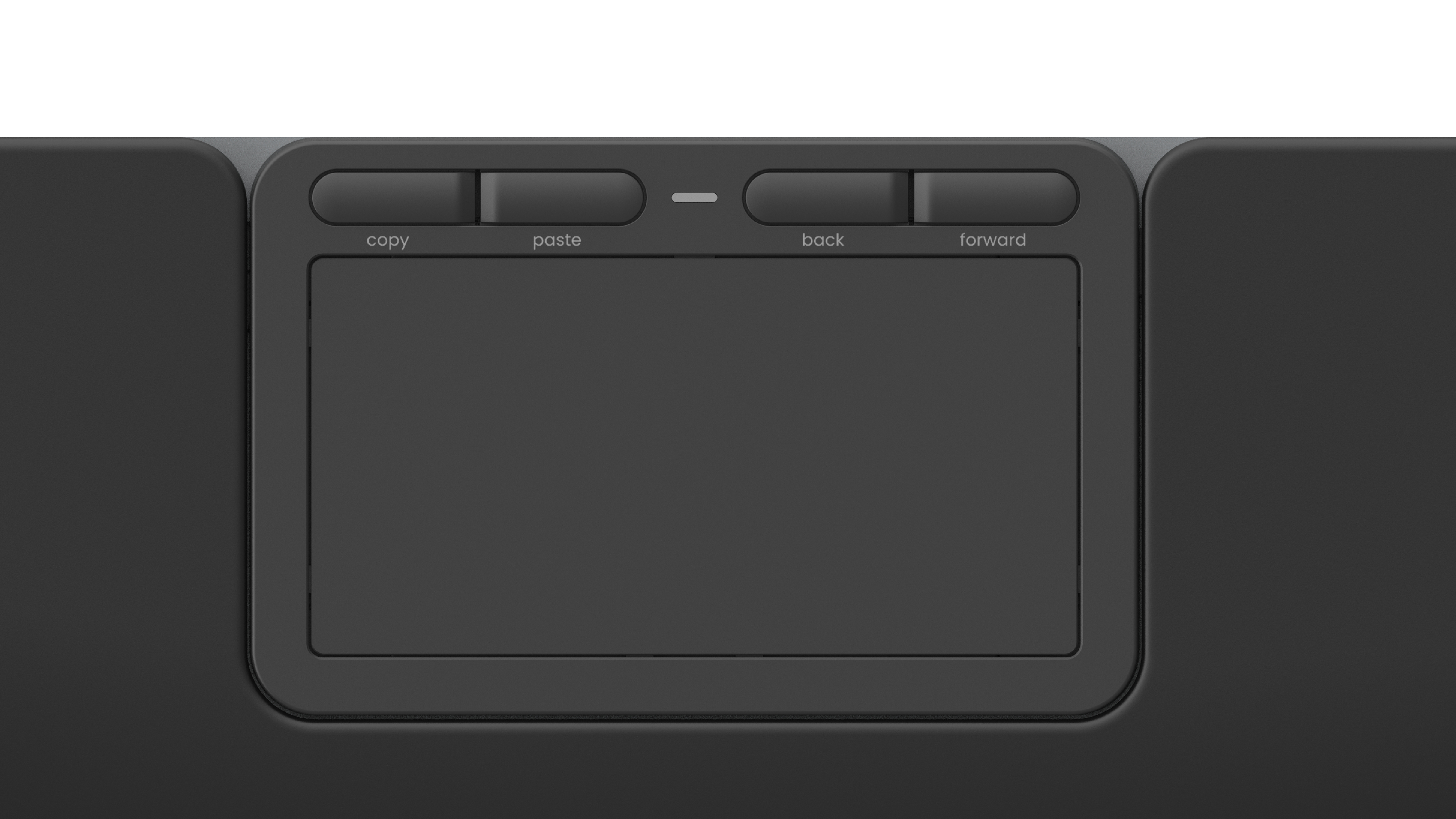
- Battery Status/Power LED: Whether one has the wired or wireless model of the Contour Touch, the battery status/power LED light, situated between the four touchpad buttons, indicates when the device has power (green light), or, in the battery operated wireless model only, when to recharge your battery (red light).
- Replaceable Rechargeable Lithium Ion Battery: If for some reason the battery on the wireless model no longer takes a charge, it is possible to replace the Lithion Ion battery by swapping it out in the battery storage area underneath the device.
- Connect via Bluetooth (Wireless only): The wireless model of the Contour Touch connects to a device using Bluetooth 5.1. If the system has Bluetooth 5.1 built-in, simply add the connection, otherwise a separately purchased Bluetooth dongle will be needed to connect to the device.
- USB-C to USB-A Adapter (Wired only): New computers often have USB-C ports already installed, allowing easy connection to the Contour Touch's USB-C port via the connecting cable (USB-C to USB-C). However, for those devices that only have a USB-A port, the Contour Touch (wired) box contains a USB-C to USB-A adapter that can be used to connect to traditional USB-A ports.
- Attach Balance Full-Size Keyboard using SnapLinks: Pairing the Contour Touch with the Balance Full-Size Keyboard Wireless is a great choice, since both of these devices are low-profile and complement each other’s size and functionality. To make this pairing even more seamless, the included SnapLinks mechanism attaches the two devices so that they stay aligned with one another as if they were an all-in-one device.
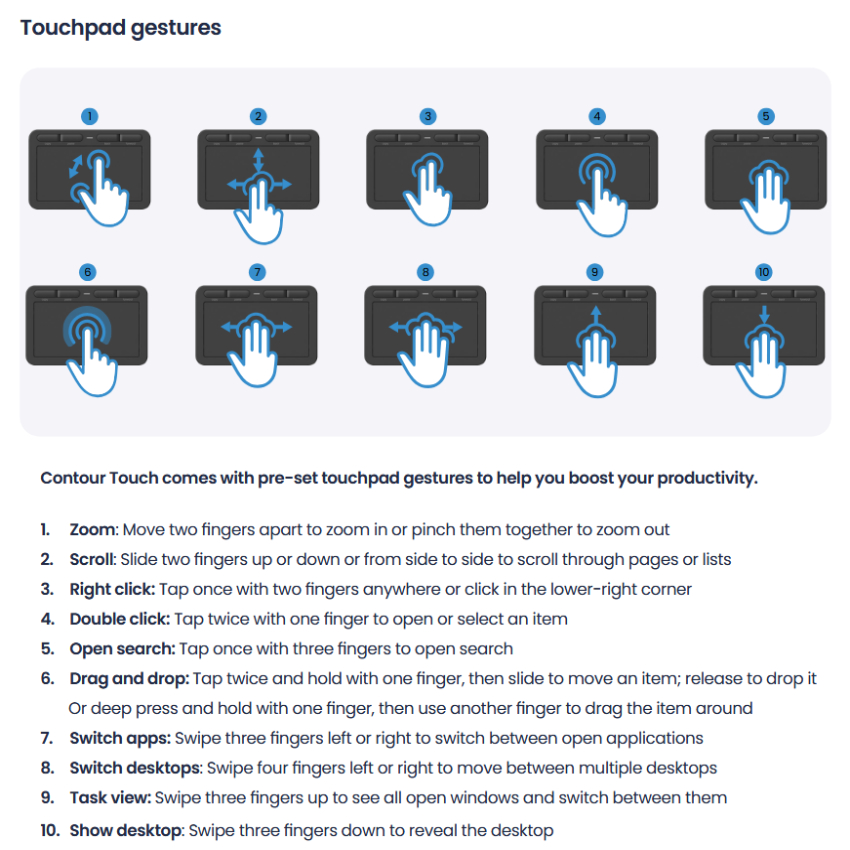
- Ten Touchpad Gestures: The Contour Touch comes with ten pre-set native Windows gestures: Zoom, Scroll, Right Click, Double Click, Open Search, Drag and Drop, Switch Apps, Switch Desktops, Task View, and Show Desktop.
- Four Pre-Programmed Button Functions: There are two easy options to perform a left click. Either press down on the touchpad itself, or reprogram a left click on the large left button in the button control area. By default the button functions include a Copy button, a Paste button, a Forward button, and a Back button.
- Programmable Driver: Although the Contour Touch works plug and play, the button functions can also be easily reprogrammed and customized by simply downloading the programmable driver from the Contour Design website.
| | Images (Click on any thumbnail to view larger image) |
|---|
Contour Touch Wired
| 
Contour Touch Wireless
| 
Contour Touch Touchpad with buttons
| 
Contour Touch In Use
| 
Contour Touch In Use with Balance Full-Size Keyboard Wireless
| 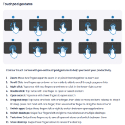
Contour Touch Touchpad Gestures Supported
|
| | Additional Resources |
|---|
- Contour Touch Product Manual: PDF
| | Technical Specifications |
|---|
- Dimensions:
Width: 17.12"
Depth (front to back) 4.57"
Height: 0.49" - Weight: 0.99 lbs
- Plug and Play: Yes, on Windows devices (not Mac)
- Number of Buttons: 4
- Removable Palm Supports: No
- OS Support: Windows (limited support on Mac)
- Interface:
CDTP10500: Bluetooth 5.1 (BT dongle NOT included)
CDTP20500: USB-C or USB-A (using included adapter) - Power Source:
CDTP10500: Rechargeable (USB-C charging cable included), 20 days average use per charge)
CDTP20500: Via USB-C or USB-A (using included adapter) - Programmable Driver: Windows 11: Drivers
Note: Please verify compatibility with your OS.
- Warranty: 2 years (manufacturer direct only)
- Package Contents:
Wireless Model: Contour Touch Wireless, charging cable (USB-C), SnapLinks
Wired Model: Contour Touch Wired, USB-C to USB-A adapter, SnapLinks
| | Models |
|---|
 | | Model # | Description |
|---|
| CDTP10500 | Contour Touch Wireless, (Bluetooth 5.1) | | CDTP20500 | Contour Touch Wired, (USB-C / USB-A [with included adapter]) |
|
|