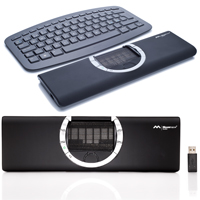
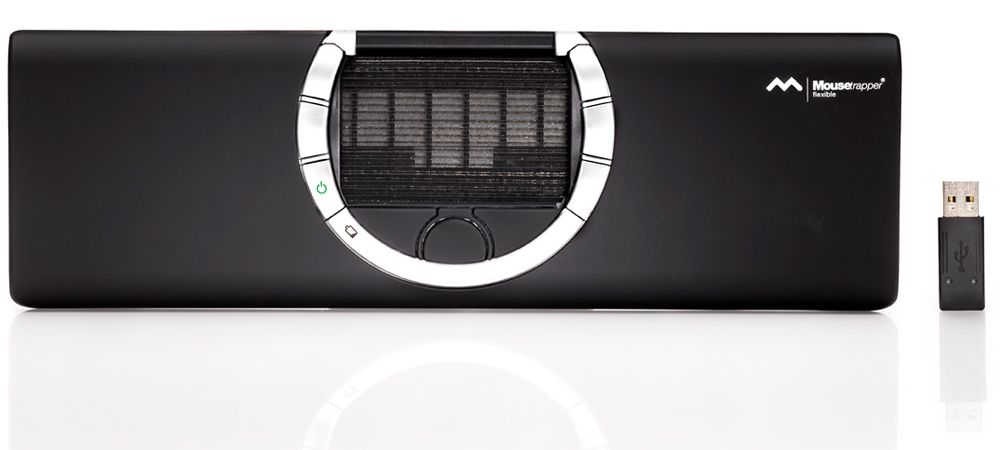
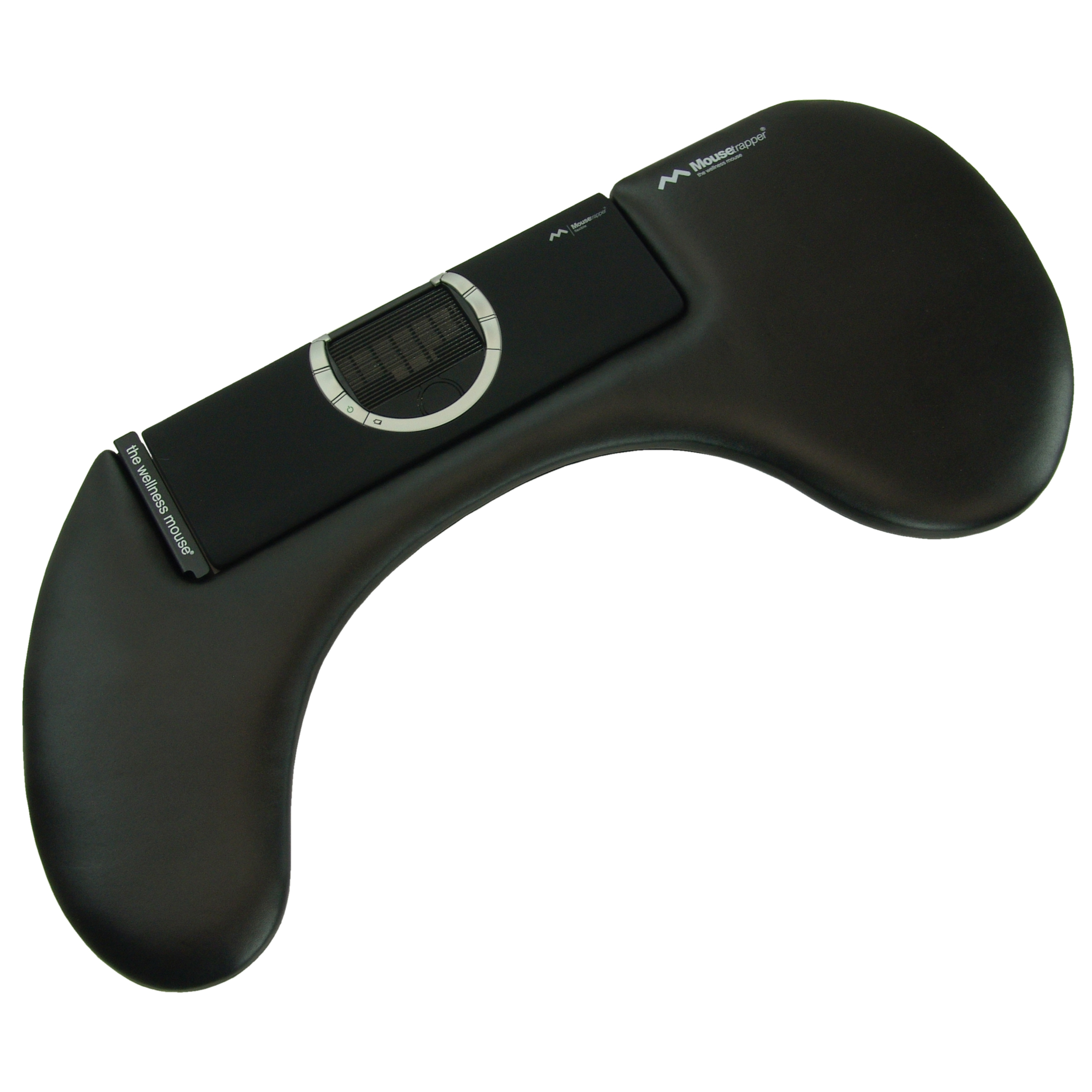
The Mousetrapper Flexible is a compact portable inline / central pointing device that offers the convenience and flexibility of both wired and wireless operation. As with all other members of the MouseTrapper family of devices, the Flexible facilitates cursor control through the innovative "steering pad". Incorporating features and concepts of both a touchpad and a treadmill, the steering pad offers fingertip control for precise cursor movement, left click activation and vertical scrolling. A ring of 9 buttons surrounding the steering pad provide the standard mouse button functions, browse forward and back, and access to common keyboard shortcuts as well as additional functions. All buttons and cursor speeds are also fully reprogrammable if desired.
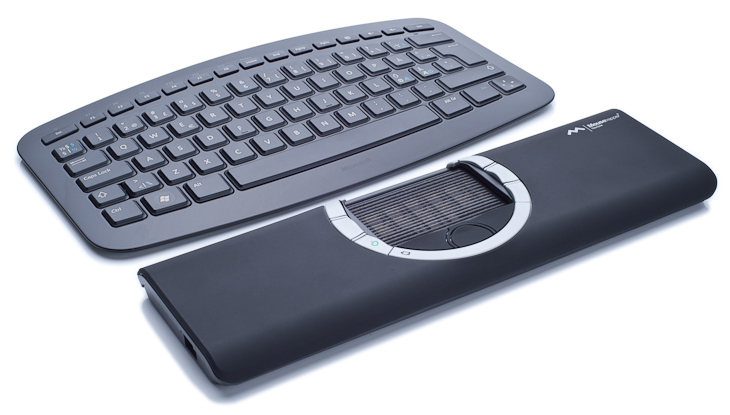
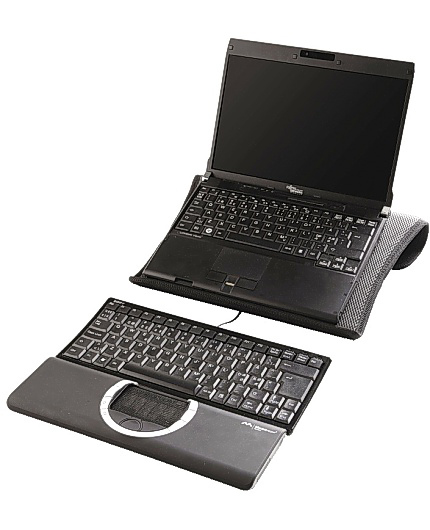
The Mousetrapper Flexible sits directly below the keyboard with the steering pad centered below the alpha-numeric keys, able to be controlled by either hand. It features a slip-free silicone traction surface for the finger tips, offering near-effortless onscreen navigation and cursor control. The fingers can rest on the steering pad between mouse activation tasks, with clicking accomplished simply by pressing down against the pad. Because the fingers are physically moving the steering pad there is a much greater degree of tactile feedback than is provided by traditional touchpads, which in turn facilitates a greater degree of accuracy and control. As well, because the steering pad is not touch-sensitive there is no fear of movement disruption if additional fingers contact the steering pad - in fact, most people will naturally use multiple fingers to move the pad, making it a more natural movement than traditional touchpad control. The two-dimensional steering pad also offers an intuitive interface that for some may be easier to adjust to than rollerbars, touchpads or trackballs.
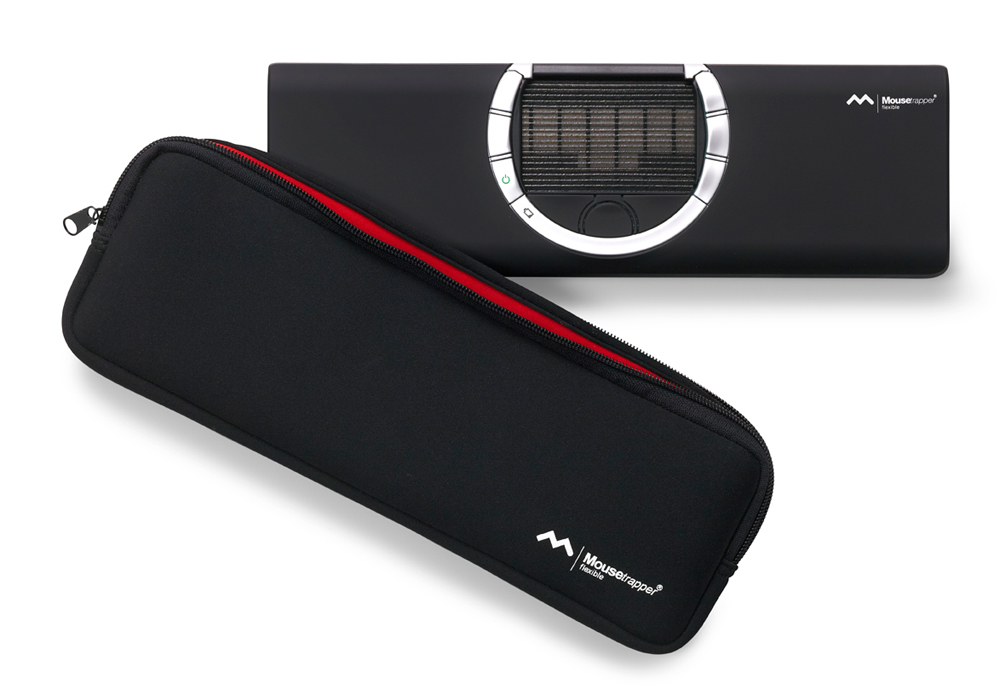
Note: Plugging the device in keeps the battery fully charged for mobile use. For portability, the Mousetrapper Flexible can be packed into the included neoprene travel bag (SMT507 model only). The included wireless receiver stores in a compartment on the underside.
Reduces Strain from Over-reaching - The Mousetrapper Flexible is designed to eliminate reaching for the mouse, which in turn helps alleviate or reduce the risk of injuries to the shoulder and upper arm that can develop or be aggravated by repetitive reaching, especially to areas beyond the comfort zone. Learn More About the Comfort Zone.
No Static Grip - Since cursor control is performed by simple contact with the steering pad surface there is no need to "grip" anything. The lightest touch of one or more fingertips can provide complete cursor control. Since the steering pad is not contact sensitive the hand can relax and rest on the pad, permitting any or all fingers to be used to control the cursor, encouraging natural hand flexing and movement.
Tactile Feedback - Since the steering pad is being physically moved there is immediate tactile feedback. The silicone-coated ribbed surface communicates the movement to the nerves of the fingers, providing a sense of "control" that is not available through a traditional touchpad or cylindrical mousing device. Buttons offer a crisp response, offering clear notification when activation has occurred.
Low Activation Force - Clicks are easily performed with minimal effort. The weight of the hand and fingers naturally exerts downward force, resulting in little additional effort being required to activate the tactile switches.
Ambidextrous - The central location of the steering pad and buttons provides both hands with equal access to the controls, enabling load-balancing throughout the day.
Extra Support for Palms - The steering pad is centrally located just below the keyboard, with the side portions of the Mousetrapper Flexible acting as additional resting space for the palms and forearm. This helps maintain a more neutral alignment of the wrists, reducing the potential for wrist extension to occur. Learn More About Wrist Extension.
Programmable - Nine Programmable Buttons provide enhanced productivity through advanced programming with the MT Keys software, offering the option of simplifying repetitive keyboard functions to a single click.
Steering Pad: This steering pad is unique to the Mousetrapper family of products. Although it looks like a touchpad, it is more like a treadmill that moves in all directions, not just up and down. Up and down movement is continuous like a treadmill, and left to right movement is set at about 3.5" either way, which is enough to move the cursor across the screen. The fingers of the user do not glide over the surface of the steering pad (as they would on a touchpad): they move the steering pad itself. Cursor control is naturally intuitive as one moves the steering pad in a two-dimensional linear plane, unlike cylindrical pointing devices. Left and Double clicks are easily performed using the Steering Pad, also much easier than with a cylindrical device as the finger is simply pressing against a flat 2-dimensional surface, rather than a cylinder that can easily rotate from any off-centre downward pressure.
Cursor Gliding: When the surface of the steering pad can no longer be moved to either side (due to limited left and right movement), but the cursor is not yet at the edge of the screen, the cursor will automatically move to the screen edge. This automatic cursor repositioning feature will recalibrate the steering pad so that normal cursor movement can resume. It is a normal part of using the steering pad and does not impede its performance.
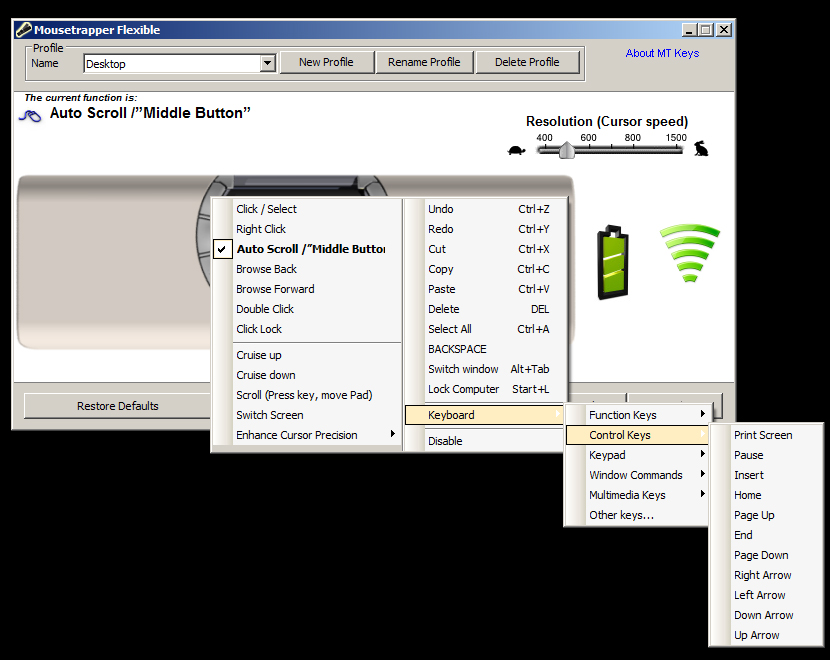
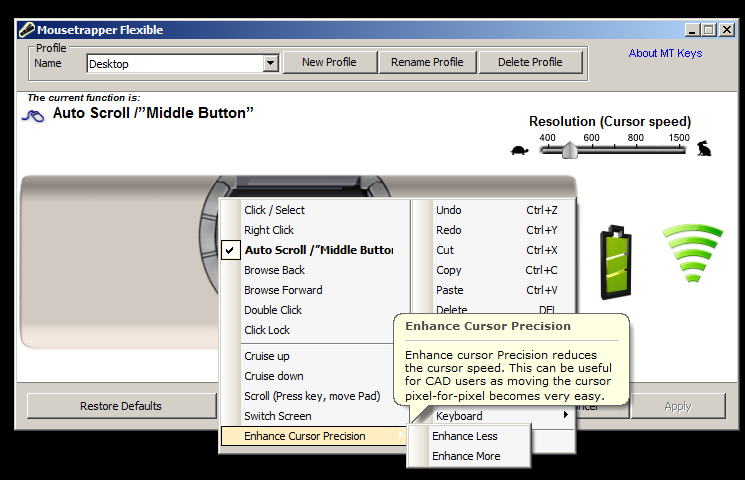
Enhanced Cursor Control: By utilizing the free MT Keys software it is possible to program a single button to temporarily slow cursor movement to provide pixel-by-pixel movement. This feature can provide an incredible level of precise control for those working in CAD and Graphic Design fields.
Tactile Buttons: Nine reprogrammable tactile buttons located around the steering pad provide a crisp click sensation for positive tactile response.
Programmable: The nine reprogrammable buttons located around the steering pad provide the basic functions of most mice: right click, middle click, double click (left click is on the steering pad) as well as advanced shortcuts: copy, paste, drag lock, web page forward and web page back. Reprogramming is done through the FREE MT Keys software, downloadable from the manufacturer's website and provides an extensive range of custom programming options.
Vertical Scrolling: The steering pad also has a scrolling feature, much like the one on many touchpads. To activate this feature, the finger is placed on the rightmost side of the pad and the pad is moved up and down to scroll. This can be combined with a click for advance web browsing; if a click is made while moving up, the "Back" function on the browser will be activated and if clicked while moving down, the "Forward" function will be activated
Shortcut Buttons: Clicks and Keyboard Stretches are reduced via the Default Preprogrammed Shortcut Buttons. Default commands include (Copy [CTRL/C], Paste [CTRL/v], Double Click, DragLock, Web page Forward, and Web Page Back. Programmability option enables users to customize their own profiles.
Compact: The design of the Mousetrapper Flexible accommodates any traditional or rectangular keyboard. The 12 inch wide reduced footprint fits perfectly with most compact keyboards.
Wired & Wireless: The Mousetrapper Flexible features a rechargeable extended-life battery and a Wireless Receiver which enables it to be used as a wired device which recharging the battery or as a totally Wireless and Cordless device, making it perfect for on-the-road-use.
Palm Rests: Smooth polyurethane-coated palm rests reduce wrist extension by supporting the hands at keyboard height.
Height Adjustment: For higher keyboards there are two small legs on the underside of the Mousetrapper Flexible in order to increase the height of the steering pad in relation to the keyboard. (1/4" lift).
Storage/Travel Case (some models only): The Mousetrapper Flexible SMT507 model comes with a zippered soft neoprene travel case designed to protect the unit from damage when travelling.
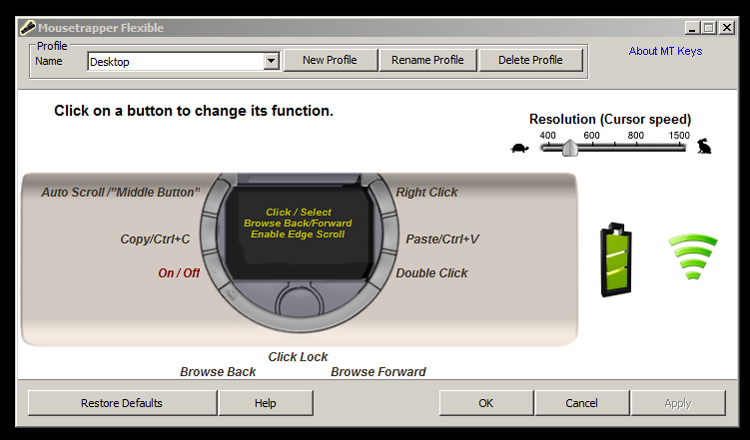
Default Control Settings: Buttons:
Top Left Button: Auto Scroll/Middle (third) Button
Top Right Button: Right Click
Middle Left Button: Copy/Ctrl+C
Middle Right Button: Paste/Ctrl+V
Lower Left Button: On/Off
Lower Right Button: Double Click
Bottom Left Button: Browse Back
Bottom Right Button: Browse Forward
Bottom Centre Button: Click Lock
* There is a ridge between the buttons which prevents two buttons being pressed at one time, thus avoiding dual commands.
Steering Pad:
Left Click: Finger can be placed anywhere on the steering pad and gently pressed down until a clicking sound is heard.
Double Click: Pressing the finger down gently twice without lifting the finger will generate a double click. (finger cannot be lifted from surface between clicks).
Scroll: Finger can be placed at the extreme right edge of the steering pad to activate vertical scroll. Once in contact a simple up/down movement will scroll the screen accordingly.
Extended Scrolling: Once scrolling is begun the steering pad may be moved up and down without keeping any finger on the right edge. The scrolling stops once the steering pad stops.By using two fingers to maintain steady movement on the steering pad you can scroll smoothly though long documents with minimum effort.
Web Navigation: Back - Place finger at the rightmost edge of the steering pad. Pull down at least one centimetre (1/2") and click. Navigating further back just takes additional clicks. (finger must remain in contact between clicks). Forward - Place finger at the rightmost edge of the steering pad. Pull up at least one centimetre (1/2") and click. Further forward navigation can be done by additional clicks. (finger must remain in contact between clicks)
Custom Programming: Mousetrapper offers free software called MT Keys which can be accessed from the Manufacturer's Website. This powerful software enables users to check and/or change the assigned functions of all buttons on the Mousetrapper Flexible. Most users have several commands which they access on a repetitive basis. Programming these into a single click can reduce awkward stretches and actually decrease the time required to perform these actions, effectively increasing productivity.
MT Keys also enables users to assign specific profiles for unique purposes. By default the program offers a single pre-programmed profile for general computer usage. The default functions for this profile are as described above. Any user can also create custom profiles specific to their needs. For example, CAD users can take advantage of the "Enhance Cursor Precision" option to enable accurate pixel-by-pixel control while still retaining rapid movement when necessary. The range of functions available for each button is too extensive to list. See the image gallery to get an idea of what is available.
The Profile Management is also a great solution for multi-user workstations, as each user can assign and quickly select the settings which are most suitable to their work pattern and personal comfort.
No Driver Required: For work environments where Administrator privileges are limited MT Keys can be downloaded and installed on any computer with Administrator privileges enabling the Mousetrapper Flexible to be custom programmed for use on other systems as the software writes the settings to the Mousetrapper Flexible and they are retained in non-volatile memory.
Note: In order to take advantage of moving between Profiles MT Keys must be installed on the host computer.
Power Settings:
Battery Conservation (SLEEP) mode: The Mousetrapper Flexible utilizes a 3-Level "Sleep Mode" which activates automatically
after 7 seconds the device switches its first power saving mode and consumes less power
after 20 seconds the devices switches to its second power saving mode, in which it consumes even less power
after 420 seconds (5 minutes) the devices switches to sleep mode, from which it takes the device 0.7 seconds to restart
the device always switches to power saving mode in order to save battery time
Automatic Switch-Off: When the USB receiver is disconnected from the USB port of the PC, the Mousetrapper Flexible will switch off automatically. To restart the unit, reconnect the USB receiver and press the on/off button for 5 seconds
Charging: When the battery lamp flashes red, the battery needs recharging. Simply plug in the included recharging cable and continue working. When the battery symbol displays a steady green light the battery is fully charged and the Mousetrapper Flexible is ready for wireless use
Images (Click on any thumbnail to view larger image)
Mousetrapper Flexible
Mousetrapper Flexible with Compact Keyboard
Mousetrapper Flexible with Compact Keyboard & Laptop
Mousetrapper Flexible with Carrying Pouch
Mousetrapper Flexible Reprogramming Software
Mousetrapper Flexible Reprogramming Software
Mousetrapper Flexible Reprogramming Software
Mousetrapper Flexible with Optional Armrest Accessory
DPI Settings: 400 - 1500 DPI (variable using MT Keys Programming software). Default is 500 DPI.
Width: 12.0" (300 mm)
Depth (Front to Back): 3.74" (95 mm)
Height: 0.75" (19 mm)
Height with Legs Extended: 1.0" (25 mm)
Steering Pad Width: 3.0" (7.6 cm)
Steering Pad Depth: 2.0" (5.1 cm)
Colour: Black
Number of Buttons: 9 (fully programmable with downloadable software)
Compatibility: PC: Windows 98 SE, ME, 2000, XP (32 and 64 bit), Vista (32 and 64 bit), Windows 7.0 (32and 64 bit), Windows 8, Windows 10 Mac: Mac OS X 10.7 or later
Weight: 295 grams (10.2 oz) 400 grams (14.1 oz) with Neoprene Transport Case (SMT507 model only)
Warranty: 2 Years
Package Contents:
MT106 and MT107: MouseTrapper Flexible, Wireless Receiver, USB Charging/Data Cable, User Guide MT507: MouseTrapper Flexible, Wireless Receiver, USB Charging/Data Cable, Zippered Neoprene Transport Case, User Guide
To obtain the most benefit from your MouseTrapper make a point of learning to use the Control Pad with both hands. This will let you balance the load across both hands, reducing the risks associated with repetitive actions.
Browse through the many options available on the MT Keys software. You may be surprised at how powerful it is and may find some unique functions that work well for specific applications.
Consider the most common actions that you perform while mousing and program buttons to perform those actions. Reprogram buttons to match your natural movements. The default commands may not necessarily be those that you need, that is why the MT Keys is so useful - you can modify the layout to optimize your work.